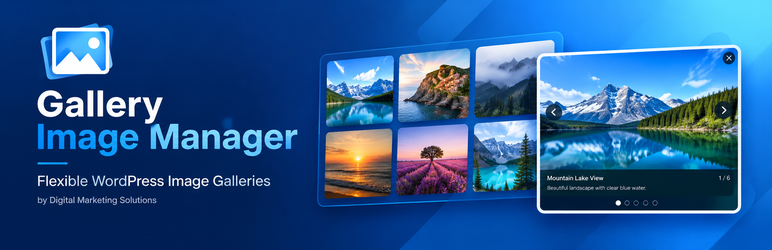

Description
DMS Gallery Image Manager helps you create and display responsive image galleries in WordPress without needing to write custom gallery code. Create a gallery in your dashboard, choose images from the WordPress Media Library, customize each image’s text, and place the gallery on a page or post with a shortcode.
Built by Abdul Aleem at Digital Marketing Solutions, the plugin is designed for site owners who want control over gallery presentation and image captions.
Key features
- Create and manage multiple image galleries from the WordPress dashboard.
- Select images from the WordPress Media Library.
- Add a date, title, and description to each image.
- Style each image’s date, title, and description independently with font family, font size, text color, and font weight controls.
- Adjust gallery columns for desktop, tablet, and mobile layouts.
- Customize image spacing, image ratio, overlay color, and hover effects.
- Enable or disable the frontend lightbox and navigate between images.
- Reorder gallery images using drag and drop in the editor.
- Display a gallery with the
[dmsgim_gallery_images id="123"]shortcode. - Use common system font choices without loading fonts from a third-party font service.
Who is it for?
Use DMS Gallery Image Manager for photography portfolios, product image collections, project showcases, editorial galleries, business websites, and other WordPress pages that need a configurable image gallery.
SEO-friendly gallery content
Add meaningful image titles and descriptions that accurately describe each image. Use descriptive Media Library alt text for accessibility and image context. The plugin provides gallery presentation and caption controls; it does not guarantee search rankings or automatically improve SEO rankings.
Credits
Developed by Abdul Aleem.
Company: Digital Marketing Solutions.
WordPress.org account: abdulaleemq.
Installation
- In WordPress, go to Plugins > Add New Plugin > Upload Plugin.
- Upload the DMS Gallery Image Manager ZIP file and select Install Now.
- Activate DMS Gallery Image Manager.
- Go to Gallery Images > Add New Gallery.
- Add images from the Media Library and enter any dates, titles, and descriptions you want to show.
- Expand “Text Style (this image only)” on an image to adjust that image’s date, title, and description typography.
- Publish the gallery and copy its shortcode.
- Add the shortcode to a page or post, replacing
123with your gallery ID:[dmsgim_gallery_images id="123"].
FAQ
-
How do I display a gallery?
-
Add
[dmsgim_gallery_images id="123"]to a page or post and replace123with the ID of the gallery you published. -
Can every image have its own caption style?
-
Yes. Expand “Text Style (this image only)” on an image card. Date, title, and description each have their own font family, size, color, and weight settings.
-
Does the plugin load fonts from an external service?
-
No. The font family selector uses common system fonts and does not request fonts from a third-party font service.
-
Will the plugin guarantee better Google rankings?
-
No plugin can guarantee search rankings. Use relevant titles and descriptions, add descriptive alt text in the Media Library, optimize image file sizes, and follow general SEO and accessibility best practices.
-
Where can I get help?
-
Use the plugin support forum on WordPress.org after the plugin is approved and listed. Include your WordPress version, PHP version, steps to reproduce the issue, and any relevant error messages. Do not post passwords or private credentials.
Reviews
There are no reviews for this plugin.
Contributors and Developers
“DMS Gallery Image Manager” is open source software. The following people have contributed to this plugin.
Contributors
Translate “DMS Gallery Image Manager” into your language.
Interested in development?
Browse the code, check out the SVN repository, or subscribe to the development log by RSS.
Change Log
1.4.4
- Added independent per-image typography controls for date, title, and description: font family, font size, text color, and font weight.
- Updated author metadata and WordPress.org readme content for publication preparation.